Screen Settings
Yugna allows you to manage screen configurations like orientation and rotation directly from the dashboard, without needing to manually adjust the underlying OS settings on the physical TV.
You can access these options in the Screen Settings, which appear when you click on any screen card in the Screens dashboard.
Screen Configurations
Section titled “Screen Configurations”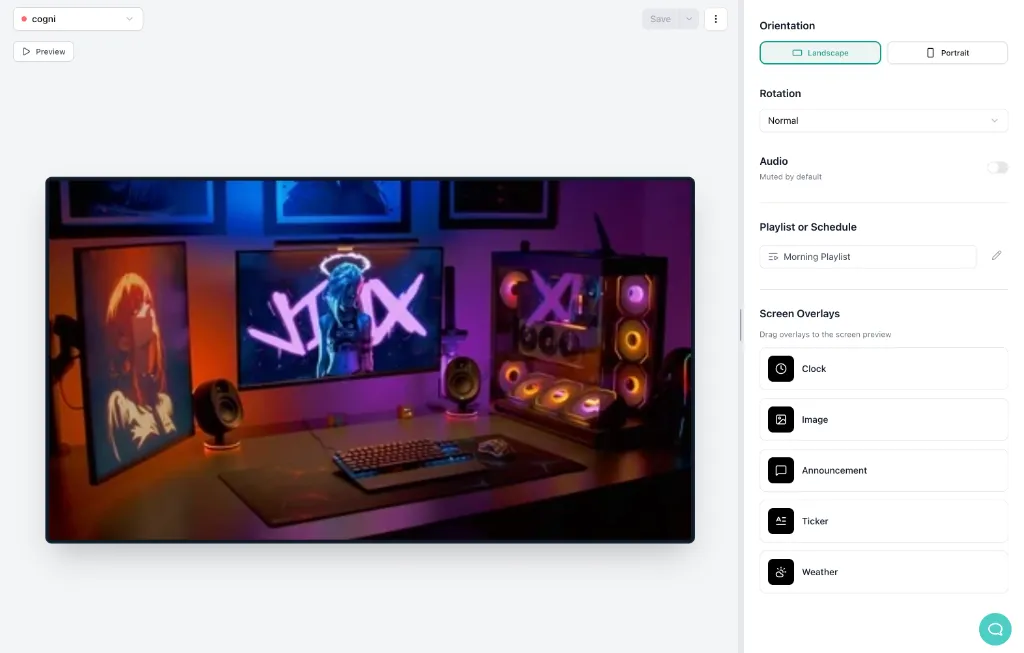
-
Orientation & Rotation (Landscape vs. Portrait) Yugna fully supports both Landscape and Portrait modes.
Example: If you have a standard 16:9 TV but you mount it vertically on a wall, your content needs to be formatted vertically as well. To achieve this, you simply set the Orientation to Portrait, and then adjust the Rotation (e.g., 90° or 270°) to match exactly how the screen was physically mounted. The platform will automatically format and rotate the output signal for you.
-
Audio Settings (Muted by Default) Digital signage should rarely surprise an audience with sudden loud noises. By default, the “Muted by Default” toggle is enabled for all new screens. If you are assigning video content and actually want the TV to play audio (e.g., in a noisy bar), you must toggle this setting off.