Assign Content to Screen
In Yugna, content management is fully dynamic. You only need to assign content to a screen once (the initial push). After that, any time you edit that playlist or schedule in your dashboard, the changes will automatically sync to your physical displays!
How Screen Assignment Works
Section titled “How Screen Assignment Works”A single screen can only run one type of content at a time. You must choose to assign it either a Playlist (if you want the same loop running 24/7) OR a Schedule (if you want the content to change based on the time or day).
Ways to Assign Content
Section titled “Ways to Assign Content”-
Assigning from the Screens Dashboard (Recommended)
The central Screens tab allows you to manage all your displays in one place.
- Find the screen you want to update.
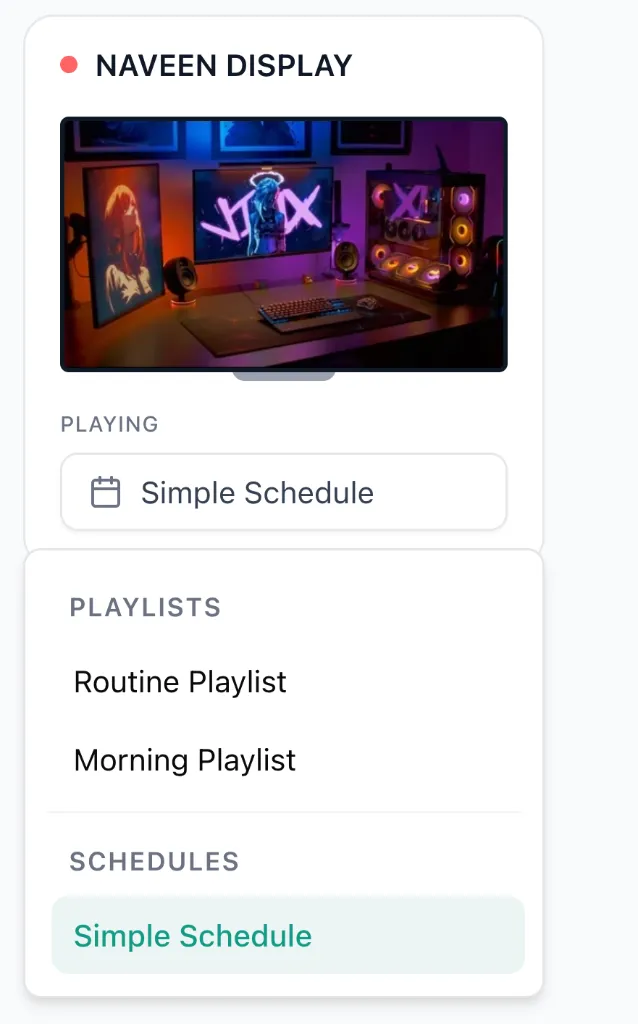
- Click the assignment dropdown for that screen.
- You will see a combined list of all your Playlists and Schedules. Select the one you want, and the screen will immediately update.
-
Quick Pushing from the Builder
If you are actively editing a Playlist or Schedule, you can push it live without leaving the builder.
- Click the Push button at the top right of the builder.
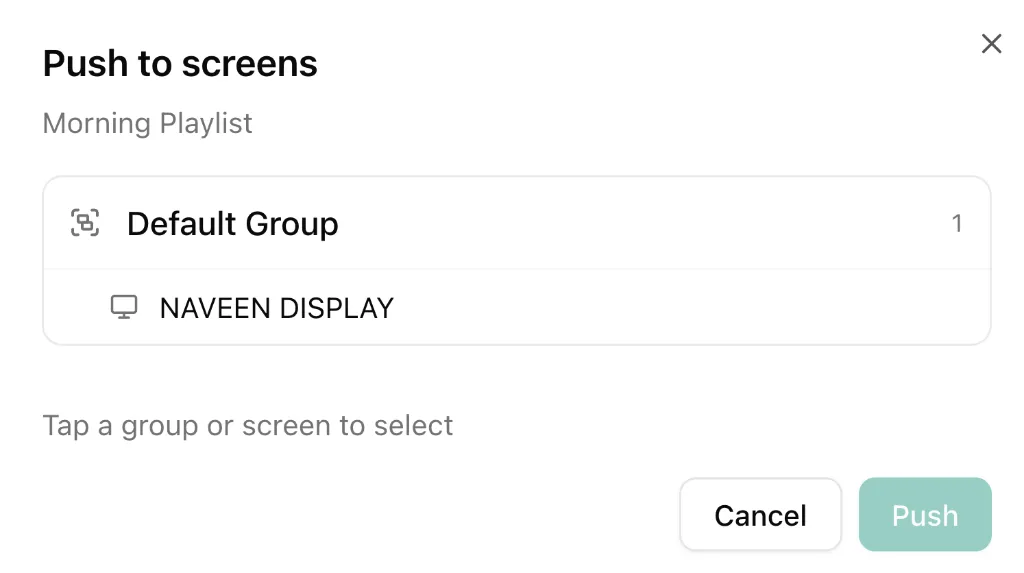
- A modal will appear showing all your paired screens.
- Select the screens you want to assign this content to, and click Push.
Monitoring Screen Status
Section titled “Monitoring Screen Status”You can monitor the status of your physical devices from the Screens tab.
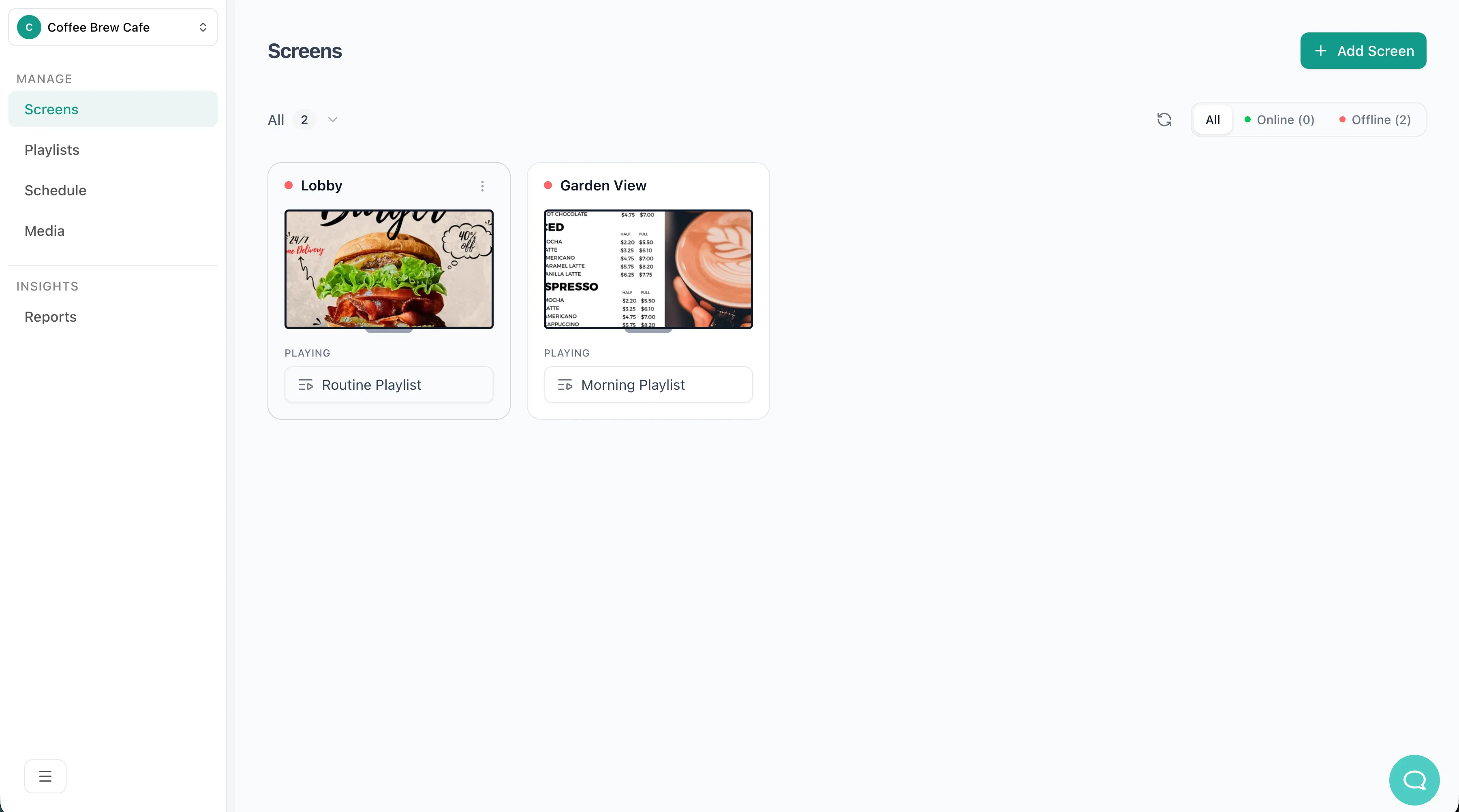
- A Green indicator means the screen is online and playing your content.
- A Red indicator means the player has gone offline or encountered a connection error.