
Creating and Managing Playlists
Playlists are the heartbeat of your digital signage. In Yugna, a playlist isn’t just a list of videos or images. It is a dynamic loop built from a collection of scenes.
Our builder features an App Library consisting of various apps. When you drag an app into your playlist and configure it, it becomes a scene in your playback loop.
The Playlist Builder Overview
Section titled “The Playlist Builder Overview”When you create or edit a playlist, you will see the Playlist Builder. This interface is divided into three main areas:
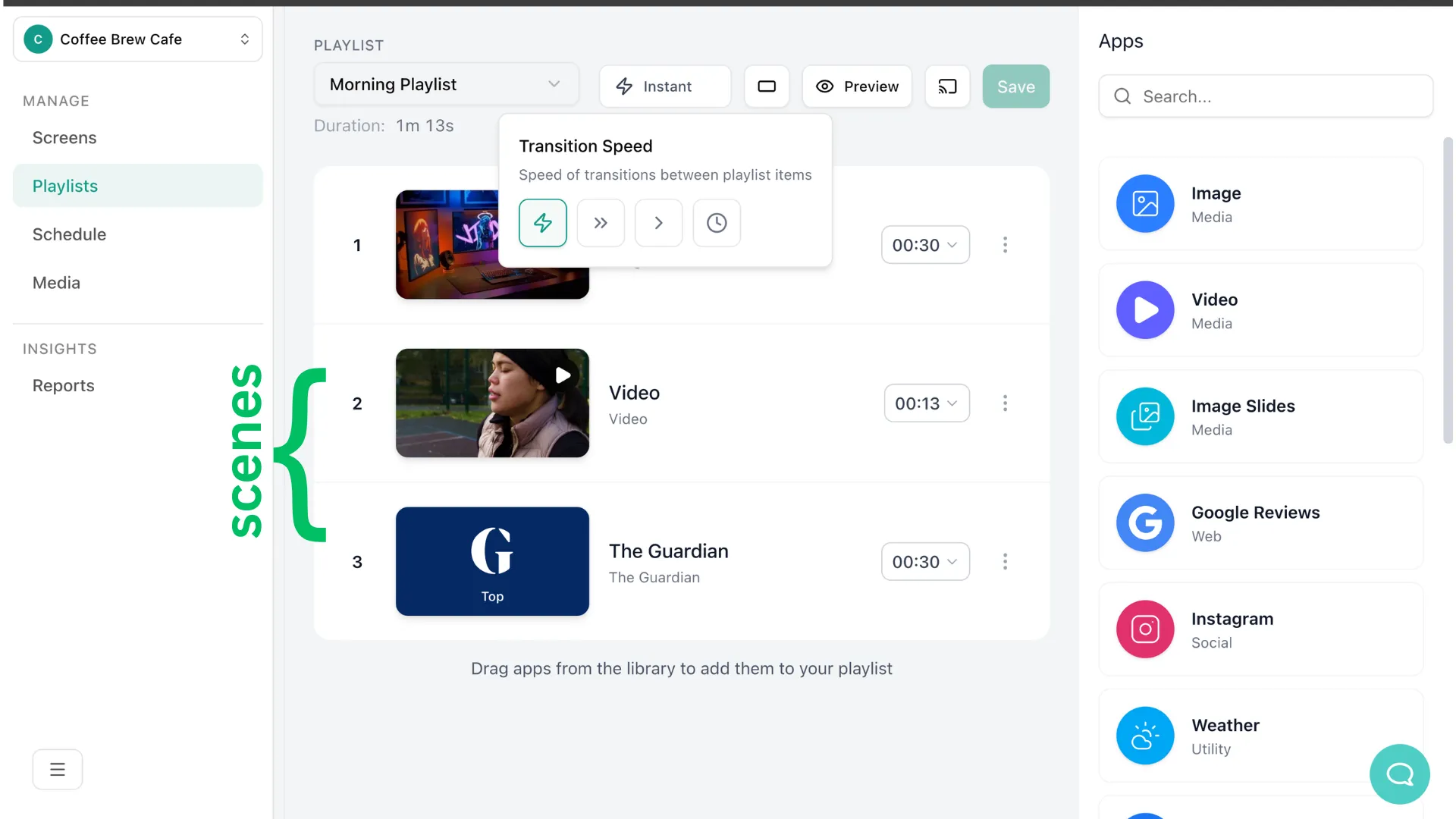
- The App Library (Right Sidebar): A collection of all available apps you can add to your screens, organized by category.
- The Timeline (Center): Your active loop. This shows the exact order your scenes will play.
- Transition Controls: At the top of the builder, you can adjust settings like the Transition Speed (Instant, Fast, Medium, or Slow) which dictates how smoothly your screens fade between different scenes.
Creating Your First Playlist
Section titled “Creating Your First Playlist”Building a playlist in Yugna is as simple as dragging and dropping.
-
Add Apps to Your Timeline
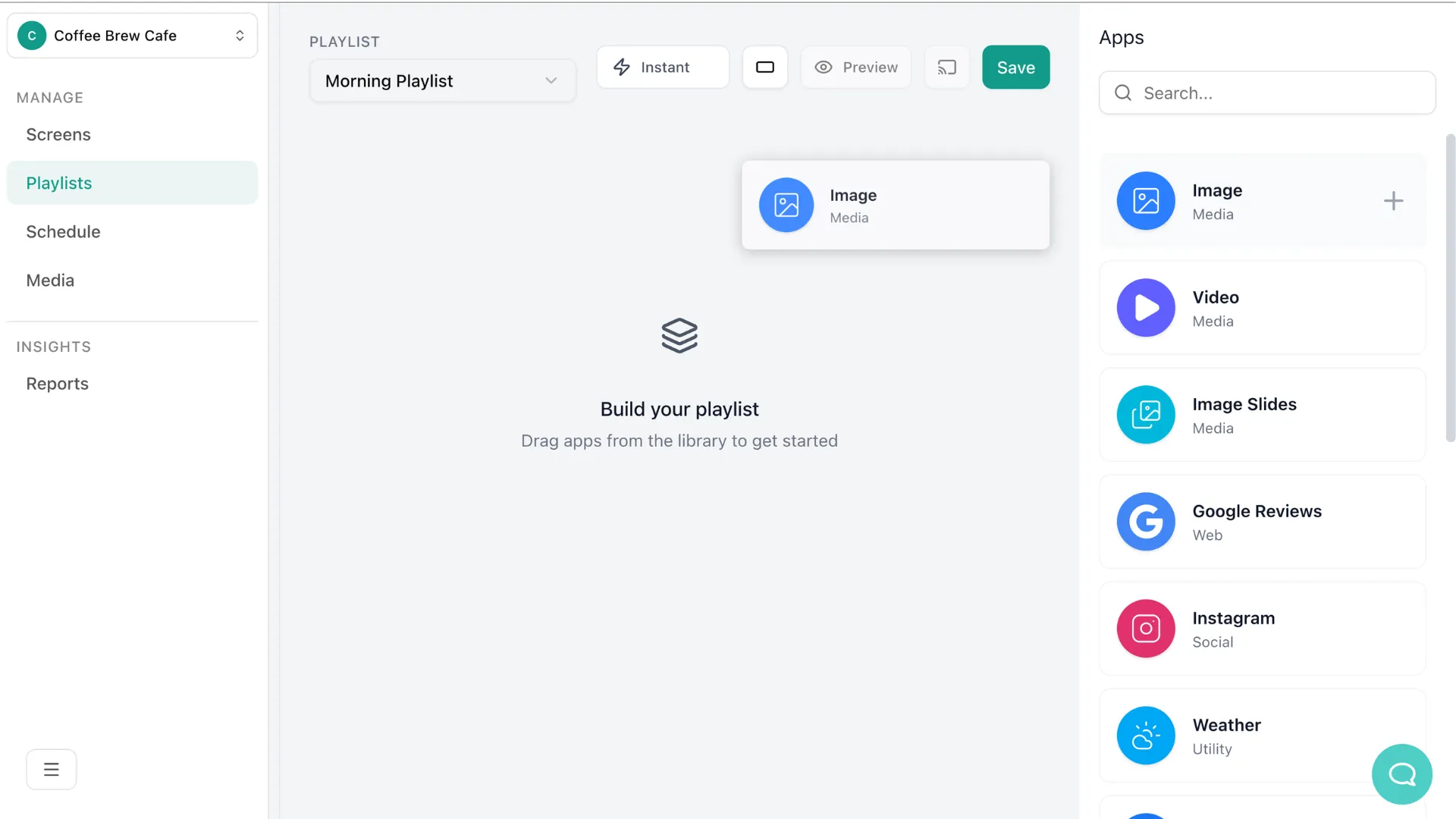
Find the content type you want in the right-hand App Library. Click and drag the App (for example, the Image App) directly into the Timeline in the center of your screen.
-
Configure Your Scenes
Once an app is in your timeline, it becomes a scene and needs to be told what to display.
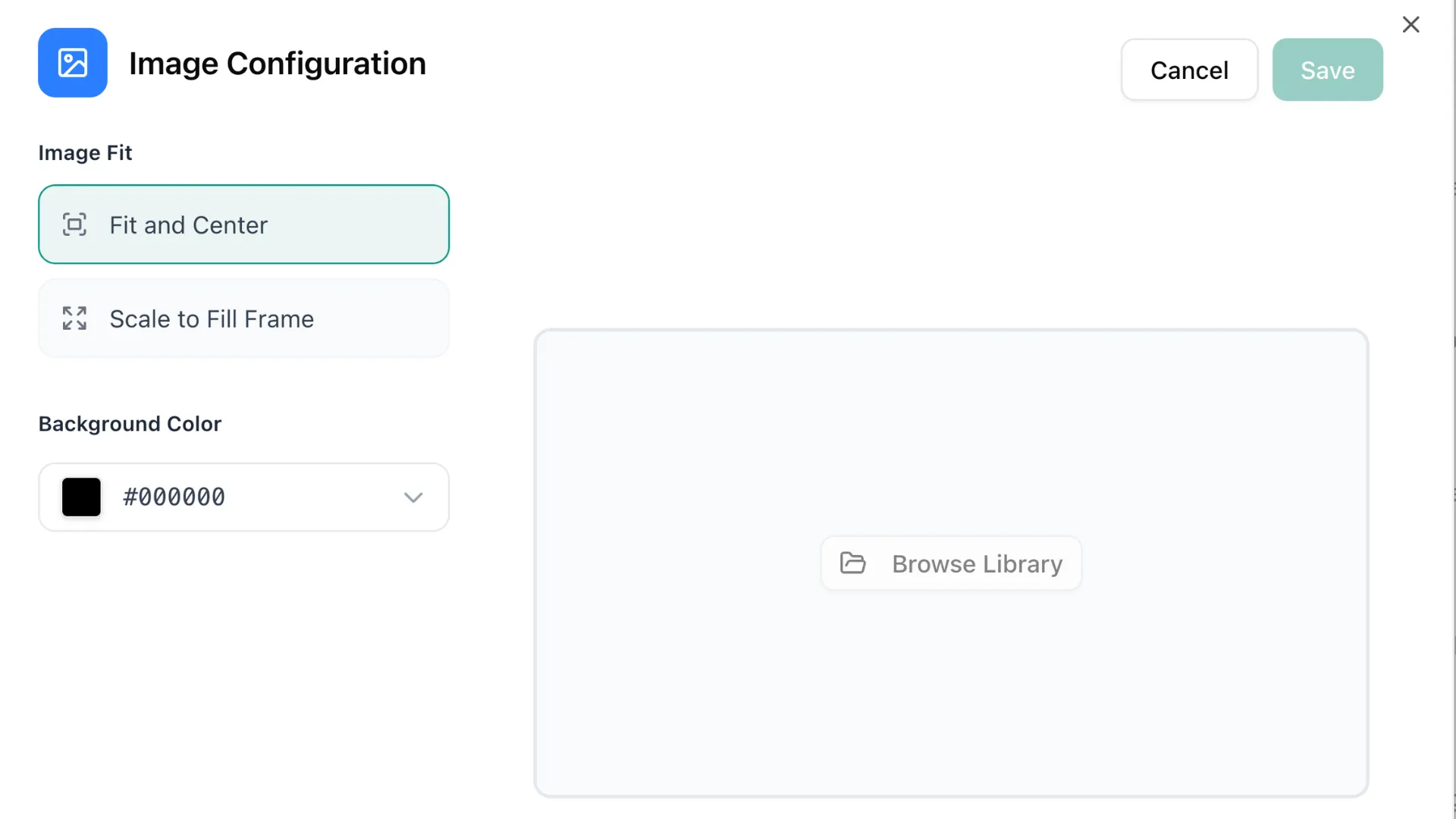
- Click directly on the scene in your timeline. A configuration dialog will open.
- For example, if you are using the Image App, you will need to select existing images or upload new images from your computer. (For other apps, you will configure them accordingly).
- Click the Save button on the dialog to lock in your changes for that scene.
Note: If you hover near the name of the scene, a small pencil icon will appear, allowing you to optionally rename the scene to keep your timeline organized.
-
Adjust Durations and Reorder
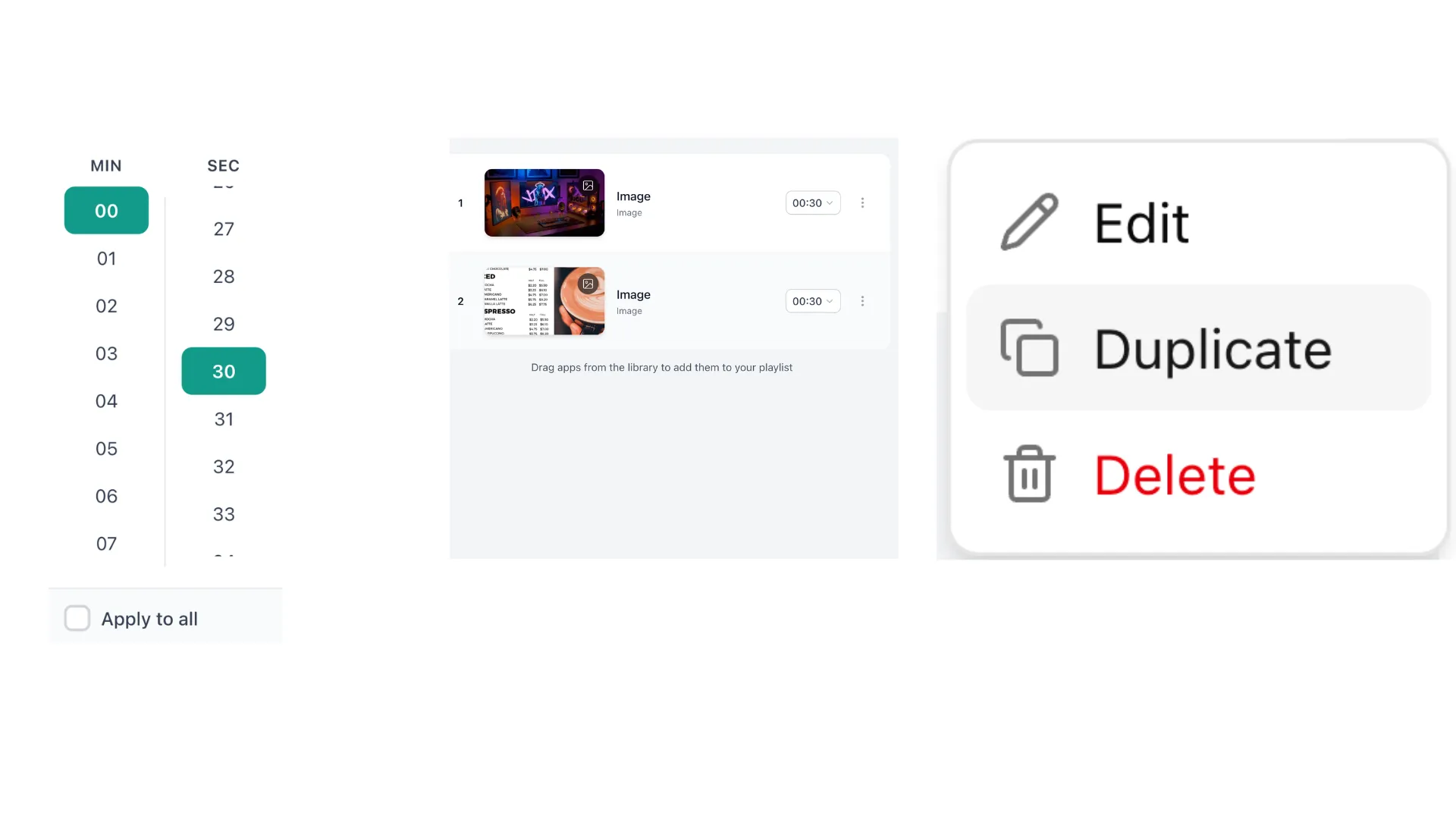
- Duration: Set the exact time you want the scene to remain on the screen. The duration is set on the playlist item (scene) level, although a few specific apps might have additional duration settings inside their configuration dialog.
- Reordering: Click and drag any scene up or down in your timeline to change its playback order.
- Duplicating: If you want to show the same scene multiple times in your loop, click the Duplicate icon on the scene in your timeline.
-
Preview and Save Playlist
Before finalizing your playlist, it is always a good idea to test it.
- Click the Preview button
 at the top right. A simulated screen will pop up, running your exact loop.
 - If everything looks good, make sure to click the Save button at the top of the playlist builder to save your entire playlist!
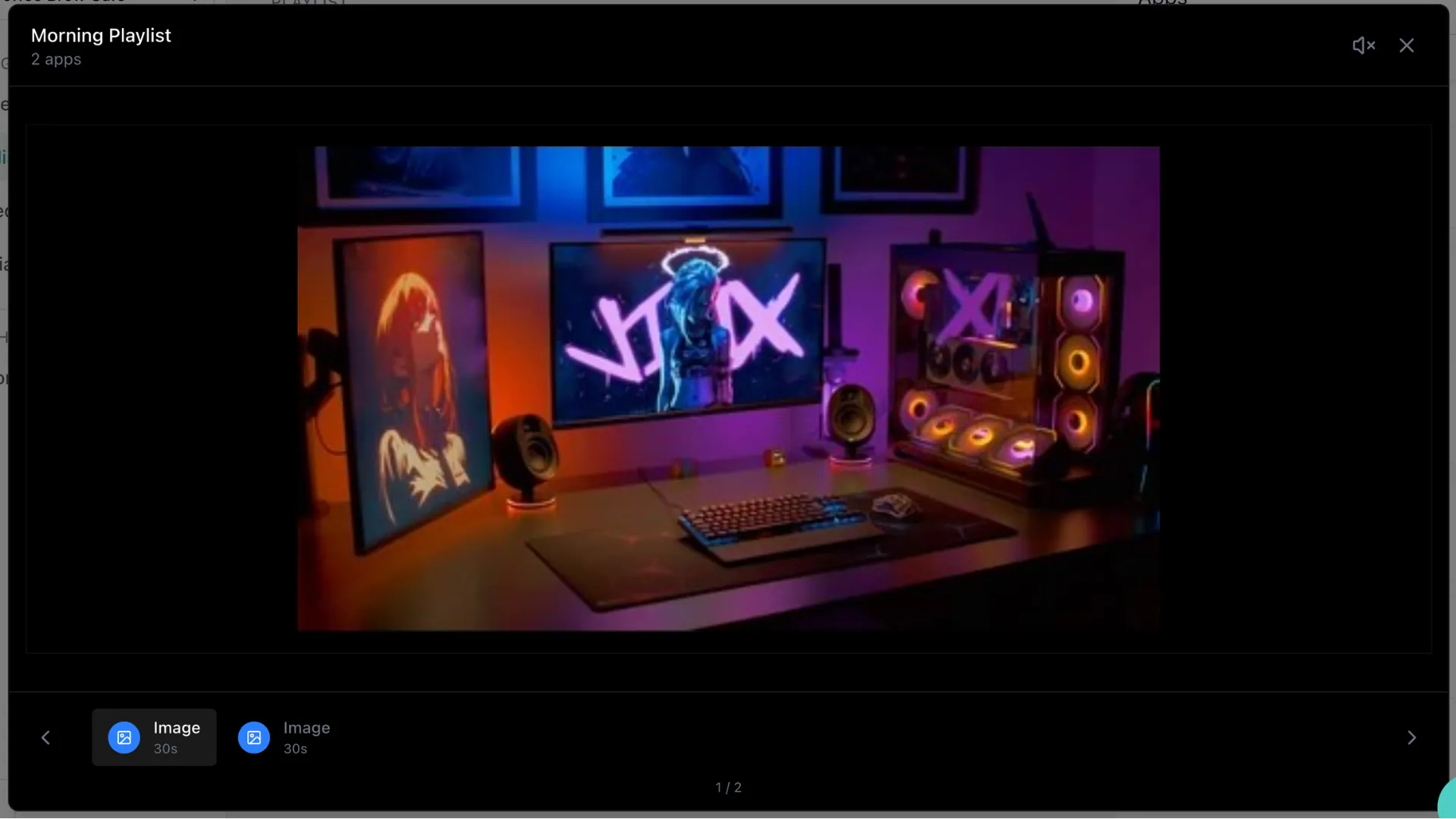
- Click the Preview button
Learn More About Apps
Section titled “Learn More About Apps”Yugna supports a wide variety of apps to make your screens dynamic. Explore our comprehensive app guide to learn how to configure each specific app type for your scenes.