Device Management
Managing your digital signage hardware occasionally requires administrative actions, like removing broken hardware or manually interacting with the screen.
Deleting (Unpairing) a Screen
Section titled “Deleting (Unpairing) a Screen”If you are permanently replacing a TV or moving hardware to a completely different location that requires a fresh start, you will need to delete the screen from your dashboard.
In Yugna, Deleting a screen is how you unpair it.
- Locate the Screen: Navigate to the Screens tab in your dashboard.
- Open the Menu: Hover your mouse over the screen’s card to reveal the ⋮ (three vertical dots) icon in the top right.
- Delete: Click the icon and select Delete.
Handling Hardware Failures
Section titled “Handling Hardware Failures”Sometimes a screen becomes “unpaired” unintentionally—for example, if the TV’s operating system corrupts, the app is factory reset, or the hardware physically dies.
When this happens, the screen will go offline, but it will still exist in your Yugna dashboard.
Local Remote Controls
Section titled “Local Remote Controls”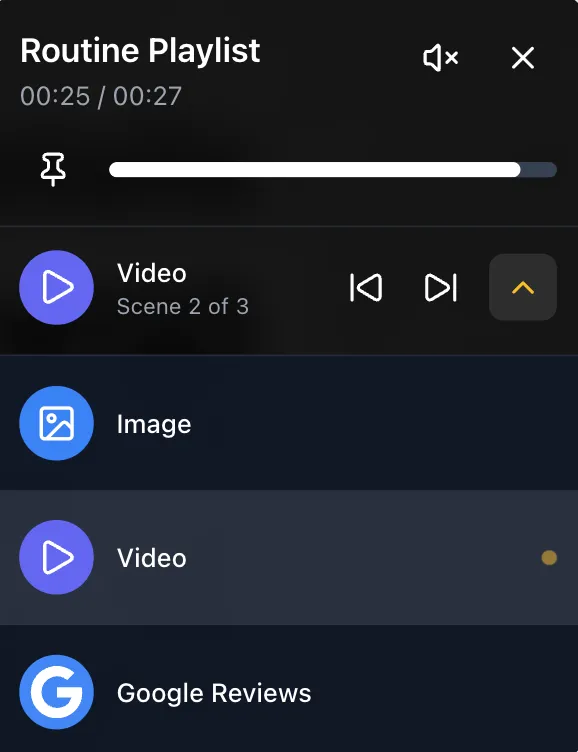
While Yugna is designed to run automatically without human intervention, someone physically standing in front of the TV can use the TV’s physical remote control to interact with the player.
You can use the remote to:
- Skip Forward: Manually skip to the next app/scene in the assigned playlist.
- Pin an App: Pause the playlist loop and force a specific app/scene to stay on screen indefinitely (until unpinned).
This is particularly useful in environments like retail stores or schools where a manager might want to temporarily pause a looping playlist to keep an important announcement or promo on the screen.