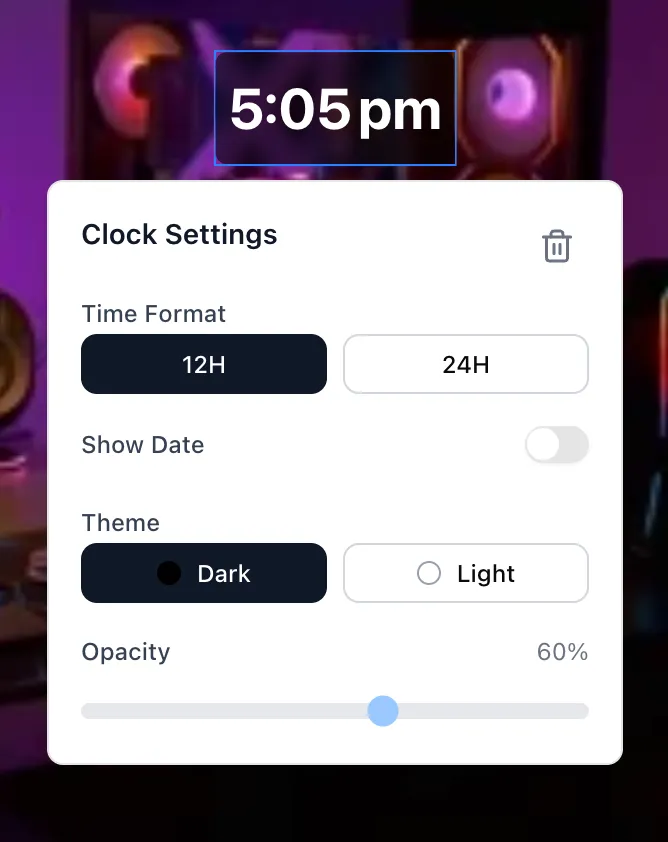
Screen Overlays
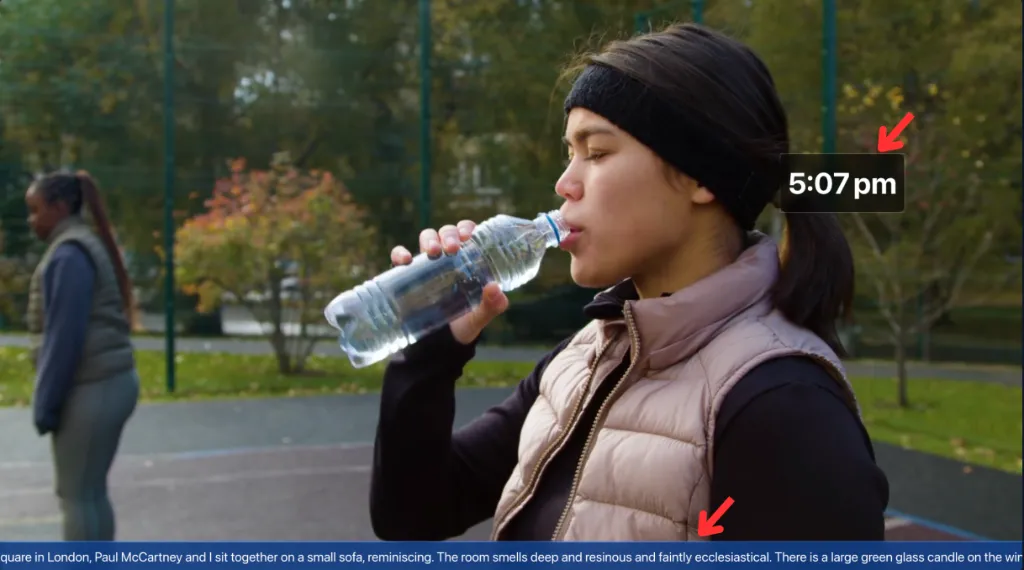
While playlists determine the primary content running on your screen, Screen Overlays allow you to layer persistent widgets on top of that content.
This is incredibly useful for adding utility (like a digital clock) or branding (like an announcement bar) to a screen, without having to embed it directly into every single video or image in your playlist.
Available Overlays
Section titled “Available Overlays”You can configure overlays from the Screen Edit page. The following widgets are available to drag and drop onto your screen:
- Clock: A digital time display.
- Weather: Live local weather forecasts based on coordinates.
- Ticker: A scrolling marquee of custom text or live RSS feeds (like news headlines).
- Announcement: A persistent text block for critical messages.
- Image: A static image (perfect for a persistent company logo in the corner).
How to Add an Overlay
Section titled “How to Add an Overlay”-
Open the Screen Editor Navigate to the Screens tab and click on a screen card to open its editor window.
-
Drag and Drop
- In the right-hand sidebar, you will see a list of available Overlays.
- Click and drag an overlay onto the visual screen preview.
- You can drag the edges to resize it, and click and drag the center to position it exactly where you want it.
-
Configure the Overlay Click on the overlay in the screen preview to open its settings panel. Here you can configure the specific visual and functional options for that widget.